Overview
Credentials can be defined to enable secure access to external services using OAuth2 credentials (e.g Microsoft Azure Entra ID). It supports:
-
Authentication for HTTP and WS_SOAP transports
-
Secure token-based access using OAuth2 flows
-
Optional Multi-Factor Authentication (MFA)
This feature is available out-of-the-box and does not require additional extensions.
Prerequisites
Before configuring the Credentials, ensure you have:
-
Access to your organization's Microsoft Azure Entra ID tenant
-
The following credentials (probably provided by your IT team):
-
Endpoint URL
-
Client ID
-
Client Secret
-
Scope
-
-
Network/proxy configuration (if applicable)
This feature is supported across all platforms and included in the base product.
Supported Authentication Flows
| Type | Grant Type Supported | Use Case |
|---|---|---|
| Application | Client Credentials | System-to-system Authentication |
| User | Authorization Code | Interactive Login via Workbench |
 Use Case 1: Create a Credential Profile (Application)
This flow is used when integrating with external systems (non-interactive authentication).
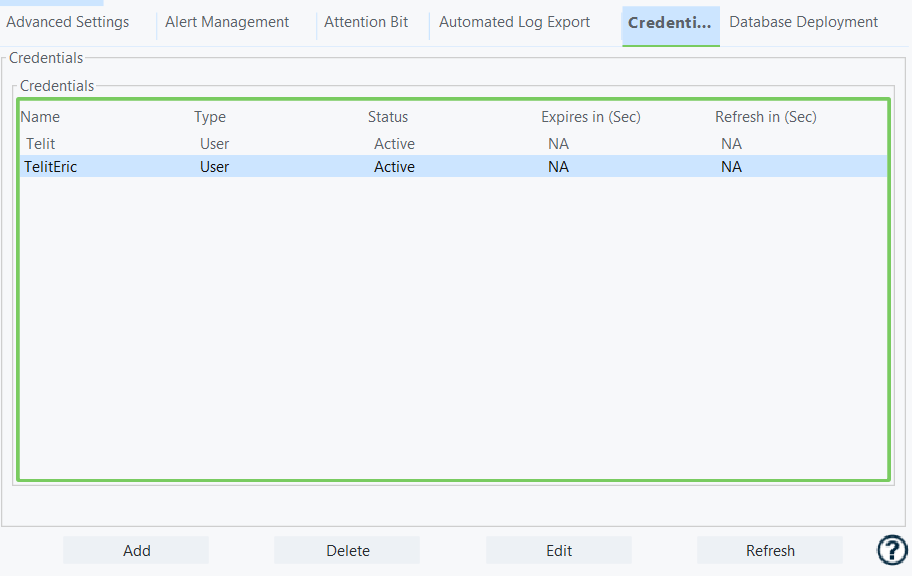
Step 1 - Open Credential Management
-
Launch Workbench
-
Navigate to: Administration > Credentials
Step 2 - Create a New Credential
-
Click Add
-
Fill in the fields:
| Field | Description |
|---|---|
| Credential Name | Identifier for this credential |
| Type | Select Application |
| Grant Type | Select Client Credentials |
| Endpoint URL | OAuth token endpoint |
| Client ID | Provided by Azure |
| Client Secret | Provided by Azure |
| Scope | API permission scope |
| Refresh interval | Token refresh frequency |
| Proxy Settings | Optional |
Step 3 - Validate Credential
-
Save the credential
-
Confirm the Status is Active in the Credentials table
If not active, verify:
- Credentials
- Network/proxy configuration
- Endpoint URL
Use Case 2: Use Credential in a Transport
Step 1 - Validate Credential
-
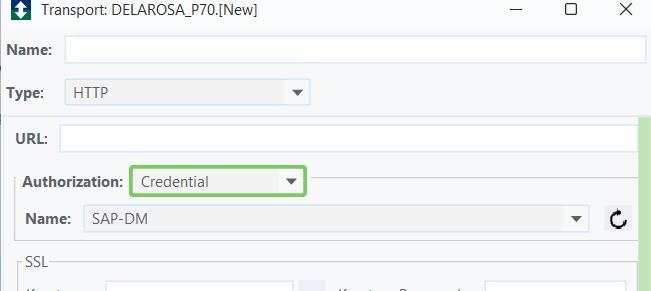
Navigate to Transport configuration
-
Supported types:
-
HTTP
-
WS_SOAP
-
Step 2 - Assign Credential
-
In the Authorization dropdown, select Credential
-
A new field Name appears
-
Select the credential profile created earlier
Step 3 - Executive Flow
-
Run the trigger using this transport
-
The system automatically:
-
Retrieves token
-
Injects it into the request
-
Use Case 3: Edit a Credential Profile
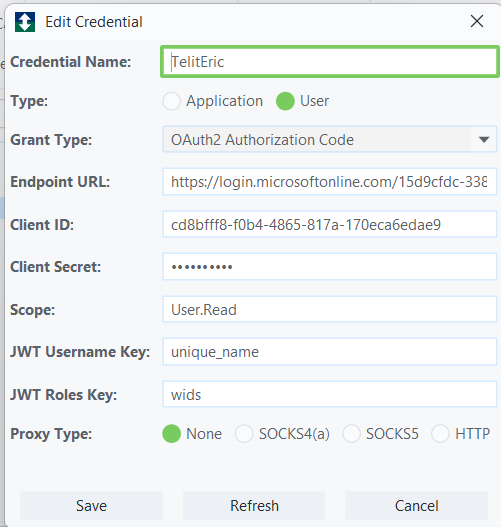
Steps to edit:
-
Open Credentials tab
-
Select existing credential
-
Click Edit
-
Update fields
-
Click Save
Use Case 4: Delete a Credential Profile
Steps to delete:
-
Open Credentials tab
-
Select credential
-
Click Delete
-
Confirm action
This action cannot be undone
Use Case 5: Login to Workbench Using Entra ID (User Flow)
This enables interactive login using Azure credentials.
Step 1 - Create User Credential
-
Follow same steps as Use Case 1, but:
| Field | Value |
|---|---|
| Type | User |
| Grant Type | Authorization Code |
Step 2 - Configure Additional Fields
| Field | Value |
|---|---|
| JWT Username | JSON field containing username |
| JWT Roles Key | JSON array field for roles |
[Screenshot recommendation] Highlight JWT-specific fields in UI
Step 3 - Start Login Process
-
Restart Workbemch session
-
Right-click node in tree panel
-
Select User External Credentials
-
Choose credential profile
Step 4 - Authenticate via Browser
-
Browser opens automatically
-
User logs in via Azure
-
Page closes after success
Step 5 - Confirm Login
-
Workbench session is now authenticated using Entra ID
Troubleshooting
Credential Not Active
-
Verify Client ID / Secret
-
Check Endpoint URL
-
Confirm Scope permissions
-
Validate proxy/network access
Authentication Fails in Transport
-
Ensure credential is selected in Authorization
-
Confirm token is being generated
-
Check logs for OAuth errors
User Login Issues
-
Verify Authorization Code flow is enabled in Azure
-
Confirm redirect URI configuration
-
Check JWT mapping fields