Once you have defined your devices, you can use the Workbench to access the variables that reside in those devices.
- From the Workbench left pane, select
the Variables icon.
The Variables window appears as the
right pane.
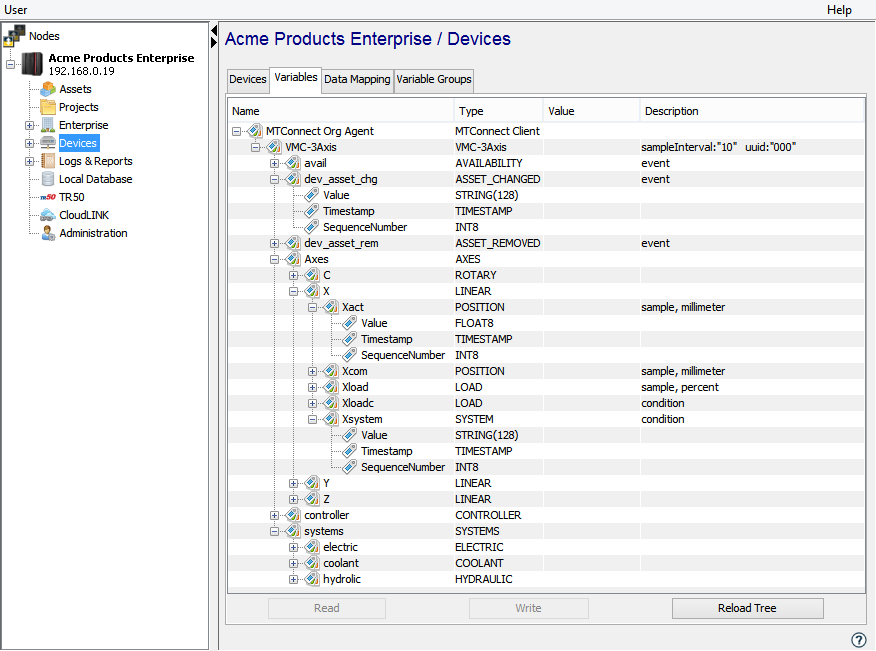
The Variables window provides a tree format that lists the started devices in the node. The devices must be in the Started state to be included in the Variables window. Each device can be expanded to show the variables that reside in that device. - You can expand or collapse the tree format to zoom
in or out on a device’s variables. For a
MTConnect device, when you get to an individual data
element you have access to
the Read function to read
a device’s data element. The access level for all
MTConnect variables is read only. For
information on data types and data conversion supported
by the MTConnect driver, see MTConnect
supported access.
-
This example of the Variables panel shows the MTConnect device type connected to the sample tool on the MTConnect.org website. The items shown on the Variables panel displayed above provide information about the data items, conditions, and events defined on this tool.
-
This example of the Variables panel also shows that each data item, event, and condition will contain the value of the variable as well as the sequence number and the timestamp associated with the item. This information is supplied with the Current and Sample requests and will be readable from the Variables panel.
-
All data represented by the MTConnect device readable, but not writable. Attempts to write data to the variables will result in an error.