Once you have defined your devices, you can use the Workbench to access the variables that reside in those devices.
- From the Workbench left pane, click
Variables.
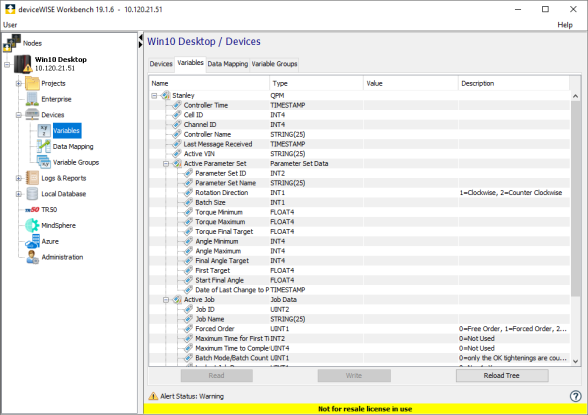
The Variables window appears as the right pane. The Variables window provides a tree format that lists the started devices in the node. The devices must be in the Started state to be included in the Variables window. Each device can be expanded to show the variables that reside in that device. - Expand or collapse the tree format to view the device variables. For a Stanley Tools device, when you get to an individual data element you have access to the Read function to read a device’s data element. The access level for all Stanley Tools variables except for Controller Time, is read only. The Controller Time variable is writable, allowing you to change the time on the controller. For information on data types and data conversion supported by the Stanley Tools driver, see Stanley Tools supported access.
This example of the Variables panel shows a Stanley Tools QPM device type. The items shown on the Variables panel displayed above provide information about the Controller the driver is connected to, the Parameter Set that is currently loaded and the Job that is active on the controller.
- The value for the Active Vin variable will be populated if the user has selected the Change of VIN subscription option on the device definition panel. The VIN will be sent to the driver in the form of a Stanley Tools trigger event types when a Single Spindle (MID0061) tightening event occurs. The information received in the Trigger Event does not update the Active VIN variable.
- The Parameter Set information will be populated when the device is started and if the user has selected the Change of PSET subscription option on the device definition panel. The controller will publish information about the Parameter Set when the Stanley Tools driver subscribes for this information.
- The Active Job structure, with its
associated variables, will be populated under the
following conditions.
- Jobs are configured on the controller
- The user has selected the Request Job Detail subscription option on the device definition panel for this Stanley Tools device.
If these conditions are met, the detail for the Job variables will populated when the first tightening event occurs after the device is started. The Job information is not published by the controller until either a tightening event occurs or a new Job is selected. If either of the two conditions are not met, the data associated with the Active Job variables will not be updated.
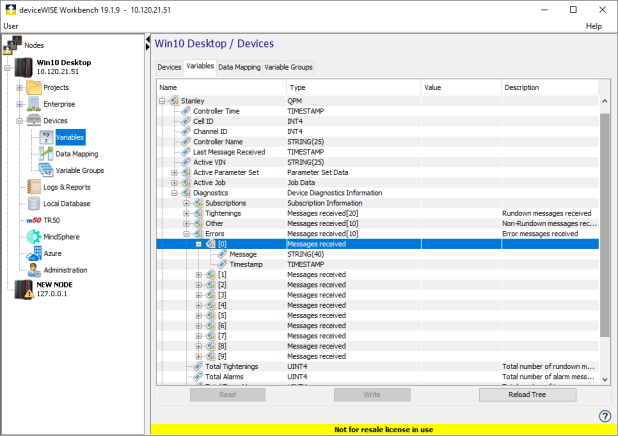
This image of the Variables panel shows the items that are displayed when the Enable Diagnostics setting is turned on for a Stanley Tools device. Under the Diagnostics item you will see which messages are currently being subscribed to. Buffers are maintained that will show information on the 20 most recent Tightening messages received. Likewise buffers are also maintained that provide information on the last ten non-Tightening messages received and the ten most recent Error messages received. Counters for each of these counters are provided so you can see how many messages of each of these three types have been received since the Stanley Tools device was started. Finally the Last Heartbeat item shows the time associated with the most recent heartbeat message sent to the Stanley Tools controller.