The Import option is available when you right-click on the Projects or Devices icon that appears when you expand a node or right-click anywhere withing the Projects or Device or Transports or Transports Maps or Listeners or Listeners Maps tab. An import is the reverse of an export. The import reads an export file and creates or updates the definition of the items in the export file.
The export and import functions is used for various reasons, including:
- Restoring a copy of an item after making changes that did not work correctly
- Restoring a copy of an item after an inadvertently changes is made to it
- As a way to duplicate an item from one node to another node.
The export and import functions have the concept of an item's dependencies, or other items that are referenced or relied upon. Some examples are:
- A trigger references its project
- A project references all of the triggers in it
- A trigger that accesses a device variable references the device
- A trigger that uses a transport map in a Transaction action references the transport map
- A transport map references the transport it uses
Existing Items can be in a Started or Stopped state while importing. When the Import option is selected, a file
dialogue is displayed allowing you to select a previously
exported .DWX file. The selected export file is then read and displayed in an
Import window: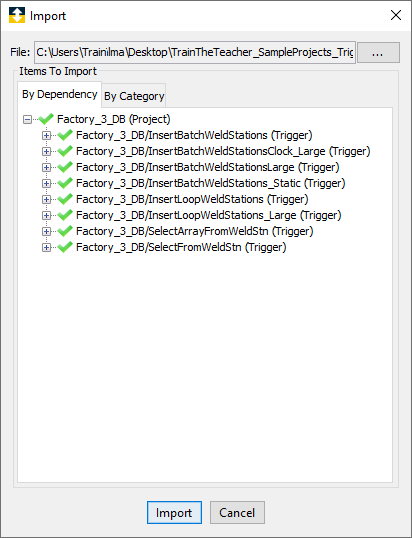
The Import window has two tabs, a
By Dependency tab and a By
Category tab. The By Dependency tab functions similar
to the Export function window, where items
and their dependencies can be expanded and selected.
By default, all items and their dependencies are selected for the import as shown by the green check mark icon next to each item. Items are selected or deselected by clicking on the icons, following are the available denotations:
- A green check mark icon means an item and all of it dependencies are selected for import.
- A grey check mark icon means an item is selected for import, but one or more of its dependencies are not selected.
- A red X mark icon means an item and all of its dependencies are not selected for import.
- A grey check mark icon means an item is not
selected for import, but one or more of its
dependencies are selected.
The By Category tab displays items by
type or category for selection or deselection: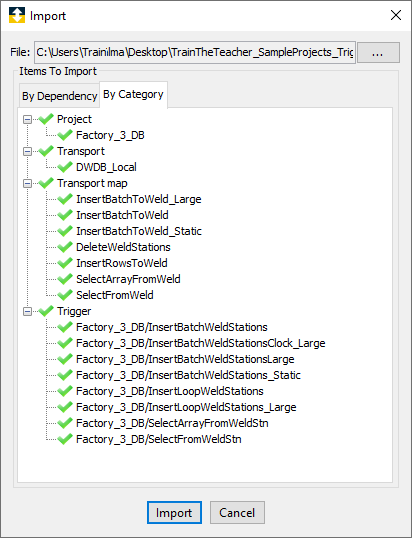
When the By Category tab is used, an item itself is selected for import. Its dependencies are not referenced or selected automatically.
 Related Topics