When a trigger is validated or saved, a validation
dialog will be displayed. As an example for the Canvas Editor, the trigger shown
below has several errors and warnings with its
definition: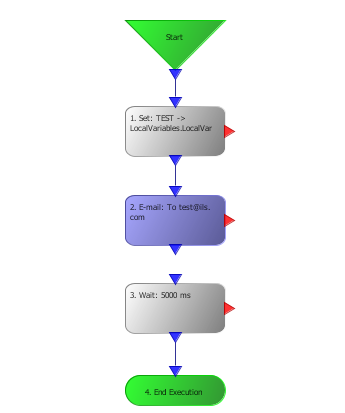
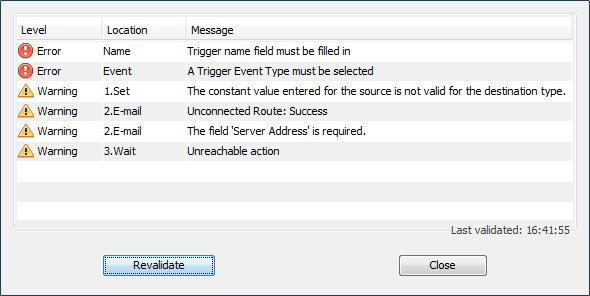
When the Validate or
Save functions are selected, the
validation dialog is displayed. For this example trigger, the dialog would be similar to
the following:
Once the validation dialog is displayed, it will remain
until closed. It will not interfere with
editing of the trigger and can be moved to the side for
convenience.
A timestamp at the bottom right of the dialog shows the
last time validation was performed.
There are two levels of messages in the validation dialog:
- Error - An error that prevents this trigger from being saved.
- Warning - A problem that still allows the trigger to be saved, but may cause an issue when the trigger is executed.
Double-clicking on any entry in the list will select the corresponding action in the Canvas Editor. If the List Editor is being used to define the trigger, it will change to the selected action.
The Revalidate button will perform the validate again, and is useful after changing the actions that were listed as having an error or warning to see if the problem has been completely corrected.