Training Models in deviceWISE Visual Inspection
The Training Dashboard in deviceWISE Visual Inspection is an integral component that enables users to train models using the annotated data from their projects.
 Preparing Data for Training
To prepare data for training, you'll need to:
-
Select a Project: Select a project from the list of created projects. It should contain the annotated images that will be used for training the model.
-
Verify Data: Make sure that the selected project has enough quantity and quality of annotated images. deviceWISE Visual Inspection has better results with 100 annotated images or more. The annotations should represent the categories or features the model is intended to learn.
The required number of annotated images will also depend on the number of elements being detected, the size of the image, and the contrast between the background and the elements being studied. So, if the model needs to perform a complex job, it is recommended to annotate more images.
-
Configure Training Parameters: Configure parameters for the training process:
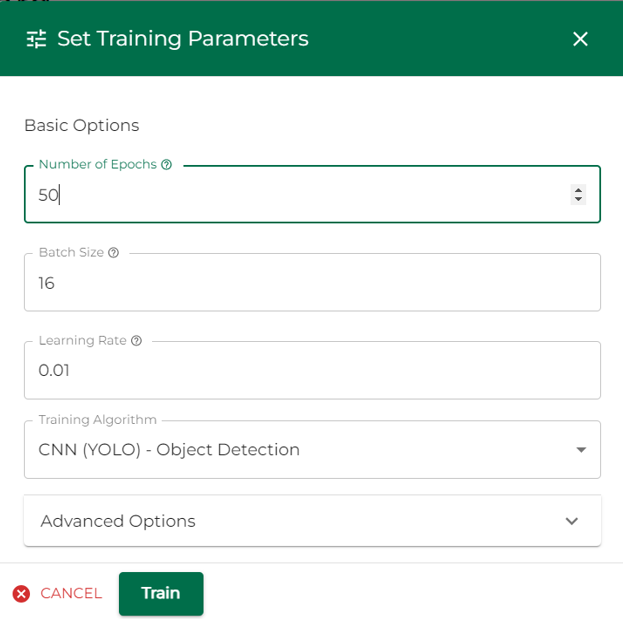
Name Definition Epochs Determines how many times the learning algorithm will work through the entire training dataset. Batch Size The number of training samples to work through before updating the model parameters. Learning Rate Speed and quality of the learning process. Training Algorithm The desired training algorithm that best suits the nature of the project and its data. Options are:
-
CNN (YOLO) - Object Detection;
-
VAE - Anomaly Detection;
-
PaDiM - Anomaly Detection;
-
OCR - Optical Character Recognition
Base Model Selection* This option enhances a previously trained model by selecting it as a 'Base Model'. This technique is known as Transfer Learning and can lead to improved performance and faster training times. GPU Configuration* For system with multiple GPUs, users can specify which GPUs to use for training. This allows for more efficient use of resources and can significantly speed up the training process. (*) Advanced Options The learning process of a model will depend mainly on the complexity of the task and the variables set above. The default values provided are already balanced. If needed, they can be personalized. To check if the model is returning good results, check the Training Dashboard, the Box Loss should be less then 1.0.
-
-
Monitor Training Process:Once the Training Parameters are defined, click Train and monitor the training progress through the Dashboard.
Training Algorithm
There is a myriad of algorithms available, capable of catering to different types of image analysis tasks. Under this subtitle you'll find a more descriptive explanation about the algorithms used by deviceWISE Visual Inspection.
-
CNN (YOLO) - Object Detection: YOLO consists in You Only Look Once. It is a real-time object detection system implemented through CNN, ideal to identify and classify objects, items or features within images, YOLO's architecture allows it to process images quickly and accurately, essential for real-time applications.
-
VAE - Anomaly Detection: Variational Autoencoders are a type of generative model that are effective in anomaly detection, working by learning to encode and reconstruct normal data. During inference, anomalies are identified based on the model capability of reconstructing the input data accurately. Particularly useful in scenarios where it is needed to detect outliers or unusual patterns in image data
-
PaDiM - Anomaly Detection: Patch Distribution Modeling provides another approach for anomaly detection, being particularly effective in identifying subtle and complex anomalies in images, ideal for tasks that require more precision.
-
OCR - Optical Character Recognition (Pretrained for inference): The OCR model in deviceWISE Visual Inspection is pretrained and used for extracting text during inference stage. Highly useful in scenarios where text extraction and interpretation is crucial.
Monitoring and Understanding the Training Process
The Training Dashboard offers information in real-time, providing transparency on metrics like accuracy, loss and validation results.
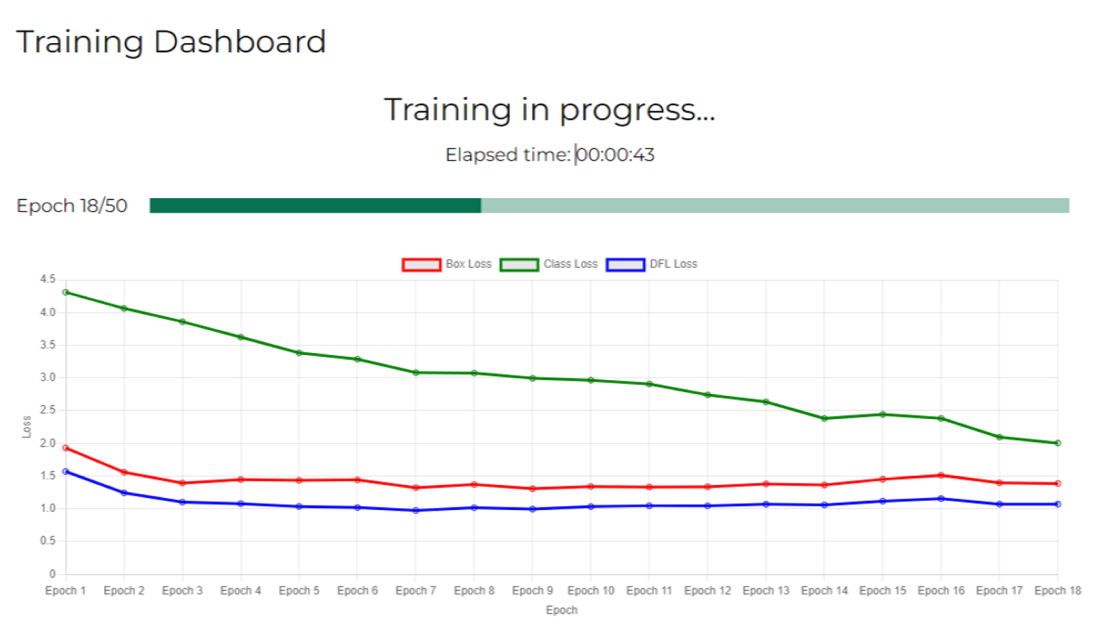
The results can be analyzed within the training dashboard upon completion of the training. The analysis includes performance metrics and visualizations that help in understanding the effectiveness of the trained model.
Models Management in deviceWISE Visual Inspection
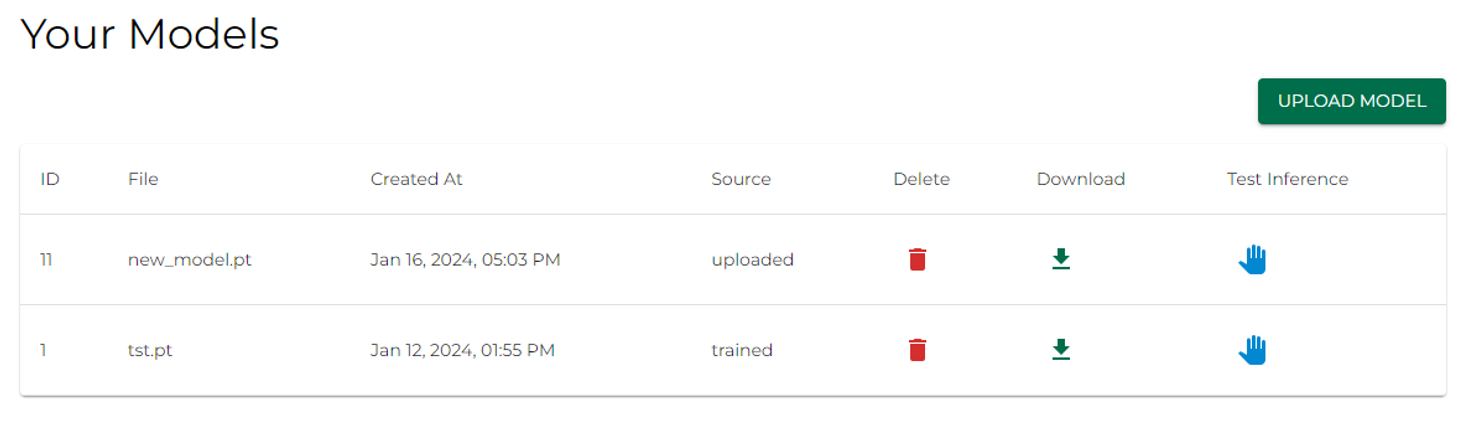
The Models Section in deviceWISE Visual Inspection serves as a centralized hub for managing trained models, offering functionalities for viewing, uploading, handling, exporting, and testing models.
Viewing Trained Models
To view Trained Models within the deviceWISE Visual Inspection platform, access the Models Section and analyze the table, divided in rows and columns that offer data of each Trained Model. The information that can be found is:
-
Model Name
-
Model Type
-
Training date of the model
-
Source of the model
Uploading Models
Particularly useful for importing models trained outside the deviceWISE environment or utilizing standard models for specific tasks.
To upload a new model, click the green button on the top-right side of the page. A pop-up will appear where it will be possible to select the model file to upload.
Managing Models
To export a model, click on the download icon. The supported formats for exporting are:
-
PT (PyTorch)
-
ONNX (Open Neural Network Exchange)
-
CoreML (for Apple devices - The export to CoreML is converted)
To delete a model, click on the trash bin icon.
Test Inference
Used to run test inferences and accessible through the blue hand icon, this features allows to select a model and upload an image to run a test inference, showing how the model performs in real worlds scenarios and provides a preview of the label results on the image.
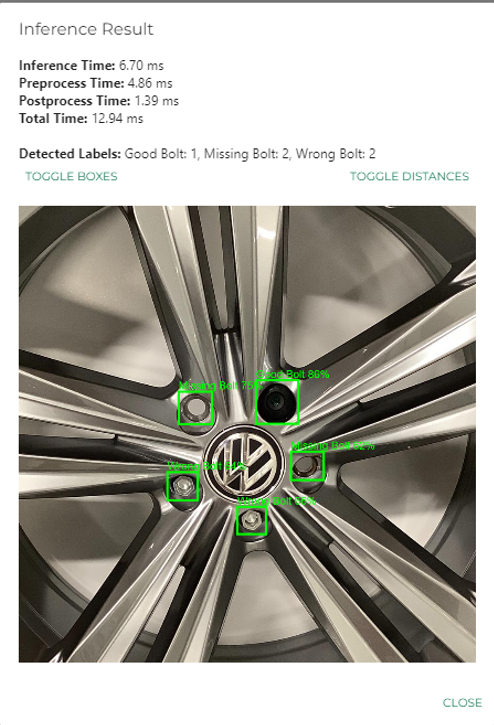
Test inference helps in evaluating the model's accuracy and effectiveness before deploying it for actual use.