Connection Details
Accessible by clicking the Detail button of a device on the Connections Page, the Connection Details Page portraits important information.
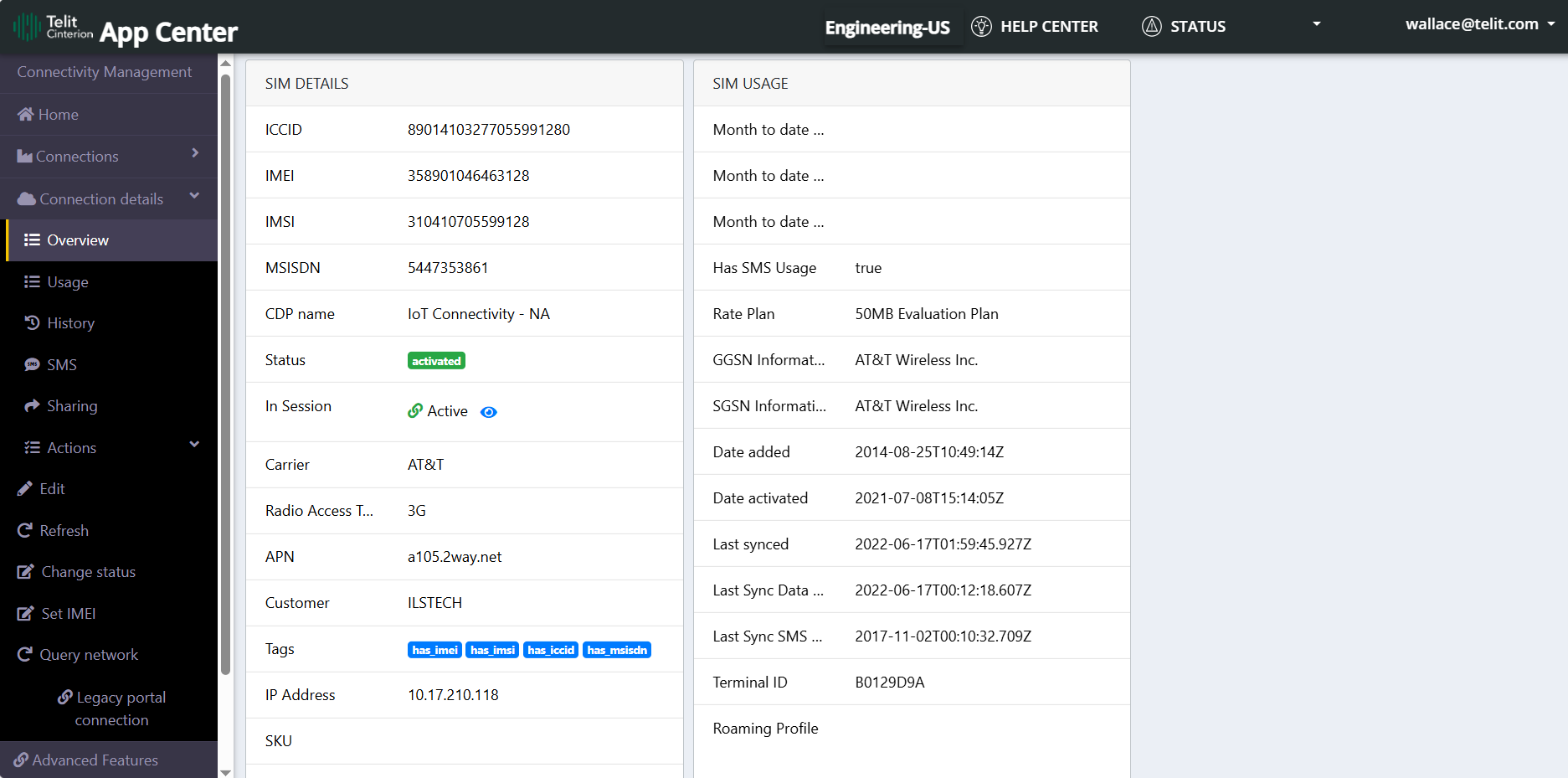
The details are the put under separated sections under the "Connection details" dropdown at the column on the left:
Overview
This page is further divided in 4 cards:
-
SIM Details
-
SIM Usage
-
Location
-
Map
An additional card called ‘Custom Field’ is automatically shown if the connection has custom settings configured.
SIM Details
|
Variable |
Description |
|---|---|
| ICCID | Device ICCID. |
| IMEI | Device IMEI. |
| IMSI | Device IMSI. IMSI stands for International Mobile Subscriber Identity. It is a number used to authenticate a SIM on a cellular network. This ID is standardized by the International Telecommunication Union (ITU). |
| MSISDN | MSISDN is a number uniquely identifying a subscription in a Global System for Mobile communications or a Universal Mobile Telecommunications System mobile network. |
| CDP Name | CDP (Connected Device Platform) name. |
| Status | Status of the connection. |
| In Session | Boolean that says if the session is active, together with a shortcut to the Session Details that will show Date Start, Data Usage and IP Address. |
| Carrier | Carrier of the connection. |
| Radio Access Tech | Type of Radio access technology that the device is using. |
| APN | APN provider. An access point name(APN) on mobile phones establishes a connection to the gateway between the carrier's network and the internet. The APN finds the IP address that the device is identified with on the network, determines if a private network is needed, chooses the correct security settings, and more. |
| Customer | Client to which the device is linked to. |
| Tags | Tags applied to the device. |
| IP Address | The device IP address(es) sourced from up to three locations in the order of Device, Session, then CDP. For more details on the hierarchy followed to show the IP address, see Connections IP address Hierarchy. |
| SKU | A identifier that represent the device. |
| Security tags | Security tags related to the device. |
| Shared with | With whom is the connection shared with. |
| EID | The eID of the connection. |
SIM Usage
|
Variable |
Description |
|---|---|
| Month to date data | The amount of data spent from the first of the current month until now. |
| Month to date SMS | The amount of SMS sent from the first of the current month until now. |
| Month do date voice | The amount of voice usage from the first of the current month until now. |
| Has SMS Usage | Boolean that says if the device is permitted to use SMS. |
| Rate Plan | Type of rate plan. |
| GGSN Information | The information about GGSN(Gateway GPRS Support Node) associated to the connection |
| SGSN Information | The information about SGSN(Serving GPRS Support Node) associated to the connection. |
| Date added | Date the SIM was added. |
| Date activated | Date the SIM was activated. |
| Last synced | Moment of the last sync. |
| Last Sync Data Usage | Metrics of data usage of the last sync. |
| Last Sync SMS Usage | Metrics of SMS usage of the last sync. |
| Terminal ID | ID of the terminal. |
| Roaming Profile | Details about the roaming profile of the SIM. |
Location
|
Variable |
Description |
|---|---|
| Address | Address location of the connection. |
| Latitude | Latitude of the device. |
| Longitude | Longitude of the device. |
| Fix type | Fix type of the connection. |
On the column by the left side, it is possible to access the following pages:
 Usage
Usage
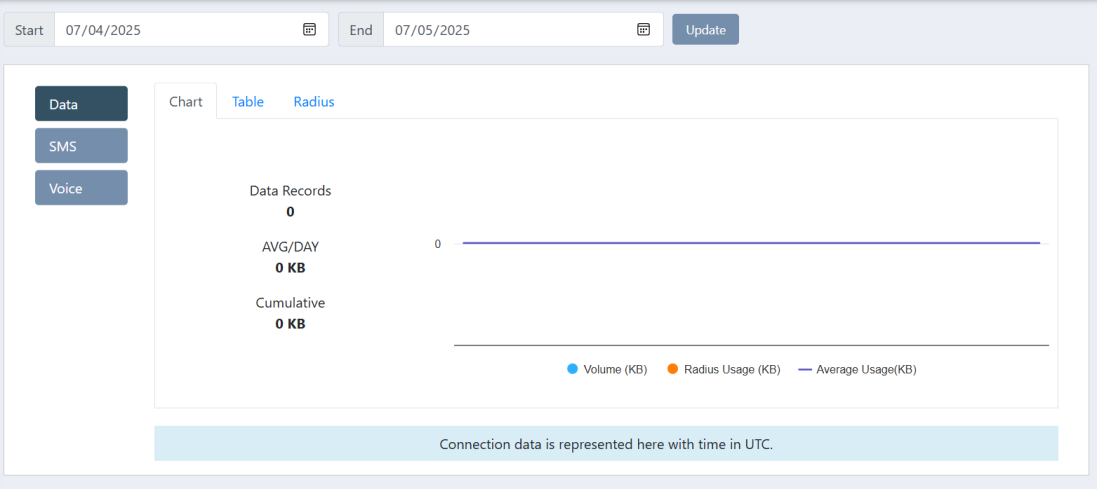
This page show the complete detail for the "Data", "SMS" and "Voice" usage. Through the Usage Page the user can search specific usage within a time-span by providing the 'Start date' and 'End date' and clicking on the "Update" button.
It has three different tabs:
|
Tab |
Description |
|---|---|
| Chart |
Shows the daily usage during selected period in a chart Shows the cumulative usage and average usage for that period Shows the radius usage for that period (only for data) |
| Table | Shows the history based on selected service (data, sms, voice) and provides the option to "Export" the data with a CSV file. |
|
Shows the history of radius session. |
History
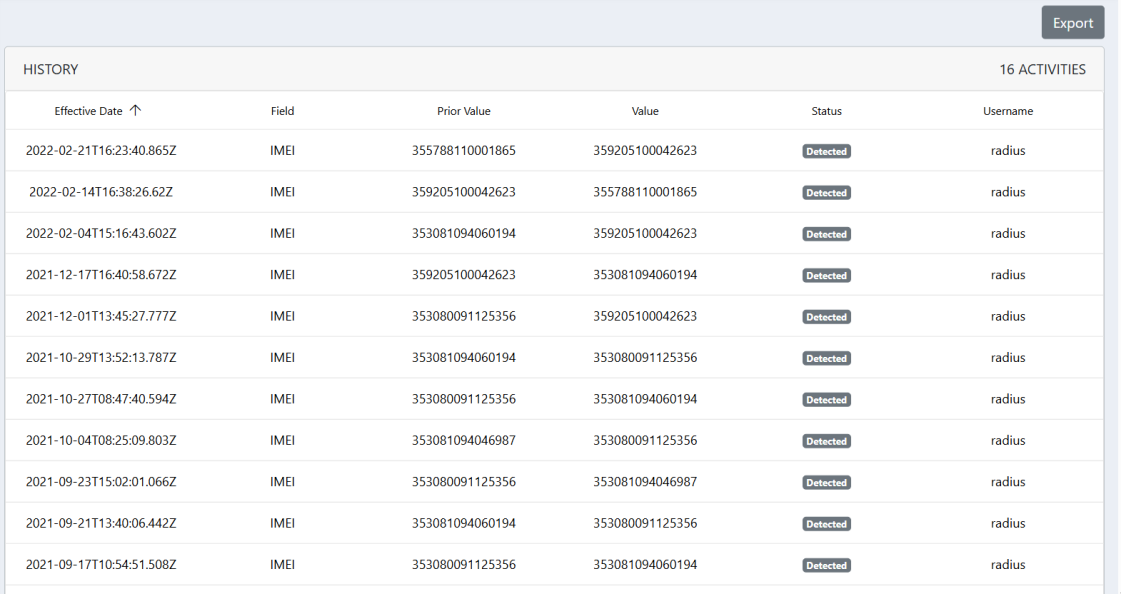
This page shows the history of the selected device and provides the option to "Export" the data with a CSV file. The information found at the table would be:
| Items | Description |
|---|---|
| Effective date | The effective date shows the data and time when the change occurred |
| Field | This field that changed |
| Prior value | The old value of the field |
| Value | The new value of the field |
| Status | The current status of the change |
| Username | The user that initiated the change |
SMS History
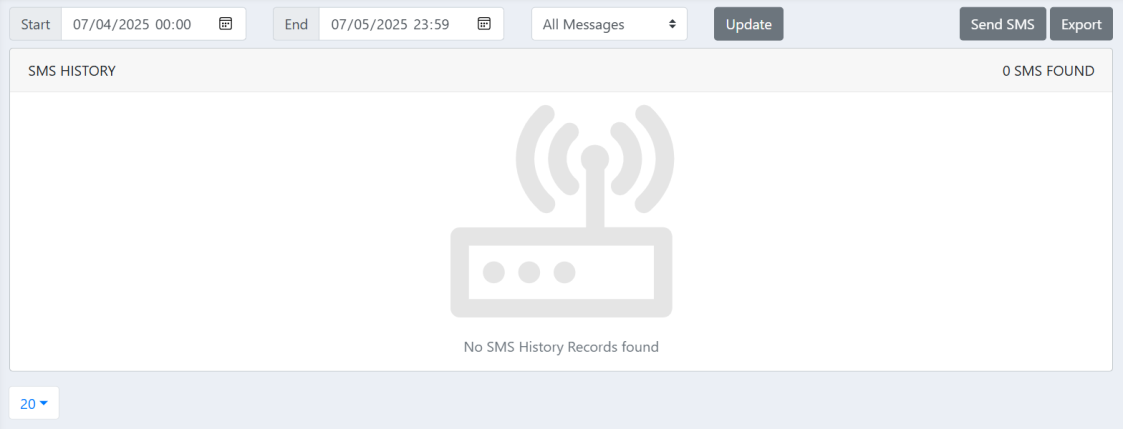
This shows the history of SMS transmissions. The user have the capability to filter the history on the basis of the Date range and the optional direction of transmission, which allows to select "All Messages", "Mobile Originated" and "Mobile Terminated".
Through the SMS History, users can also "Export" the records and "Send SMS".
After clicking on the "Send SMS" button, a modal will appear, it is possible then to select a template or fill Validity, the message and encoding, then click on "Send New SMS".
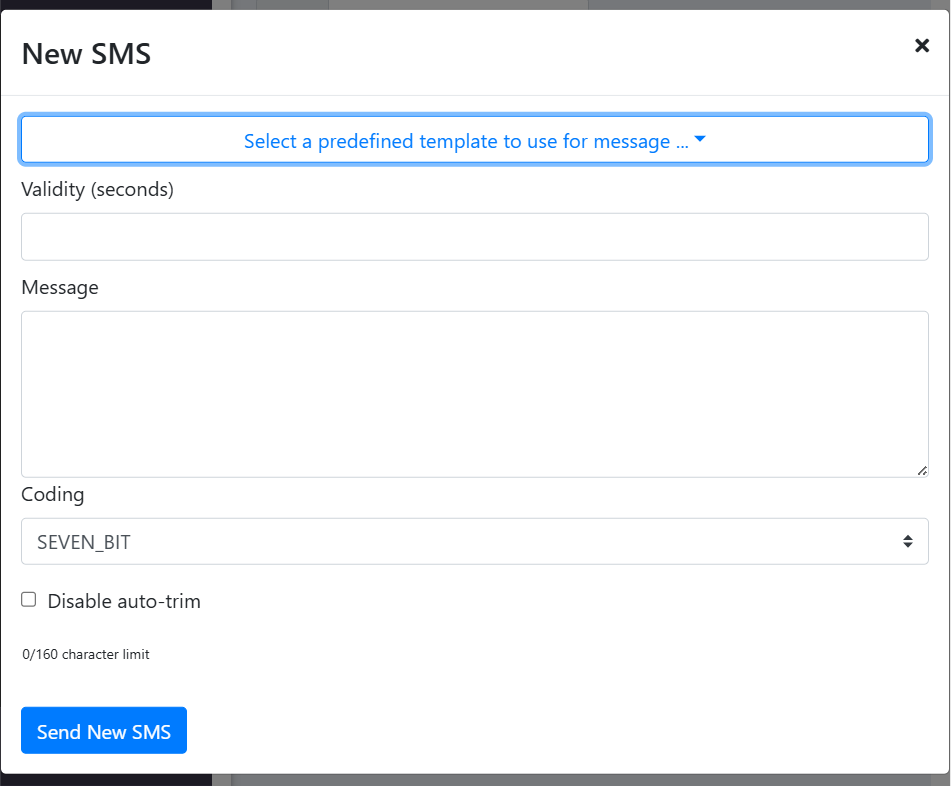
| Items | Description |
|---|---|
| Predefined Template | Dropdown with the predefined templates available, if any. |
| Validity (seconds) | Validity indicates the number of seconds from the time the SMS message is submitted, until it will expire from sending the SMS. |
| Message | Enter the message to send. |
| Coding | Select a coding format(Text, Bin or UCS2). |
| Disable auto-trim | When set to true, it will disable the auto trimming feature of the message which passes the character limit. |
Sharing
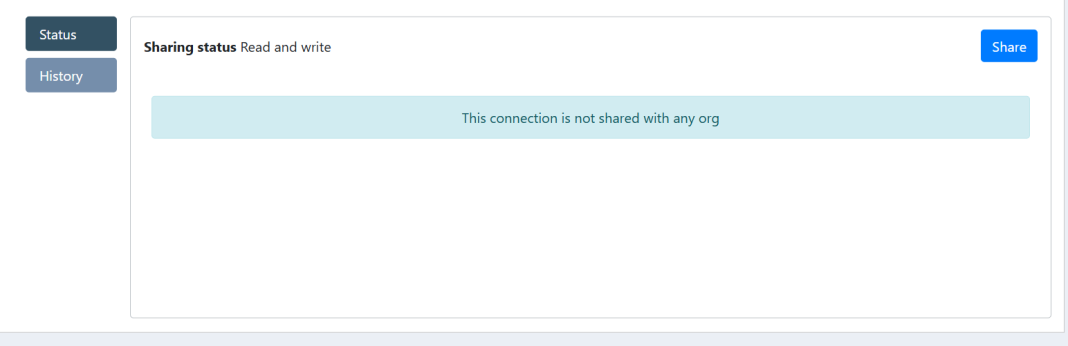
On clicking on 'Sharing', the user is redirected to the "Status" page by default, which shows the "Shared from" and "Sharing Status". Here the user can share the connection using the "Share" button.
This page even has a 'History' page which shows the history of the shared connections.
Actions
This allow the user to perform various actions on the connections. It is a dropdown, when user clicks on it, the actions bellow appear as options:
Edit
When the user clicks on 'Edit', the page displays all the details of the connections which are editable and user can edit and update.
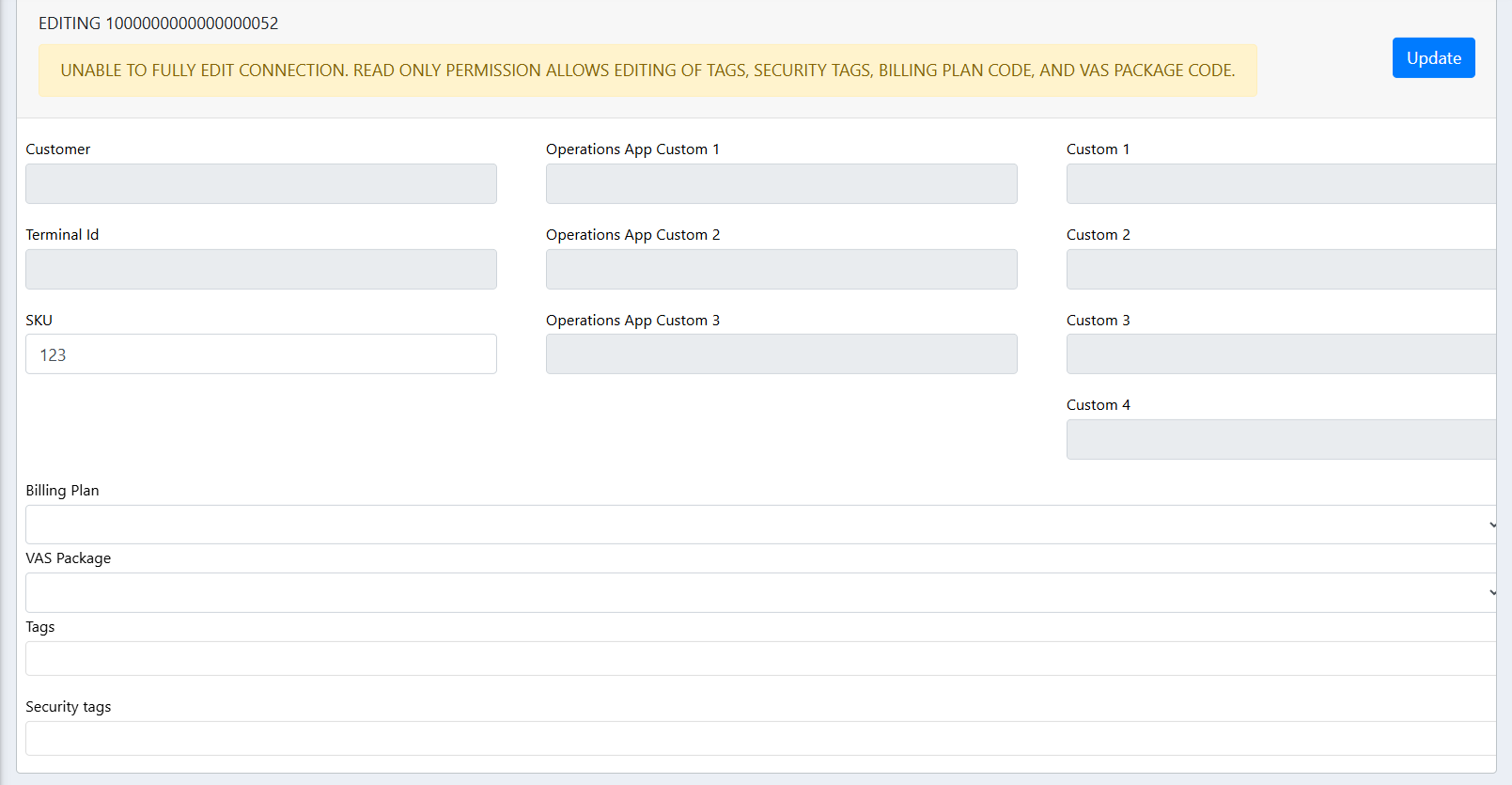
On a read-only connection, the user may only change information that is related to their reference to the shared connection.
| Items | Description |
|---|---|
| Customer | The customer to assign to the connection. |
| Terminal ID | The terminalId to assign to the connection. |
| Billing Plan | The Billing Plan assigned to the connection. |
| VAS Package | A VAS package includes payment definitions and it is contract specific. |
| Tags | The array of tags the connection should now have. |
| Security tags | The array of security tag the connection should now have. |
| IoT Connectivity - NA Custom 1-3 | The carrierCustom1, carrierCustom2, carrierCustom3 and carrierCustom4 fields represent optional values assigned by the carrier to the connection. |
| Custom 1-4 | The custom1, custom2, custom3 and custom4 fields represent optional values to assign to the connection. |
Refresh
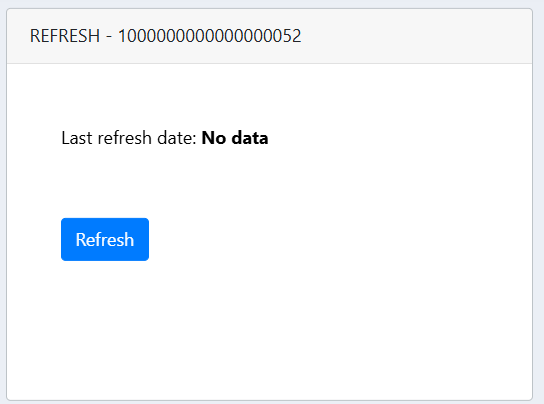
On clicking on the "Refresh" button user can refresh the connection.
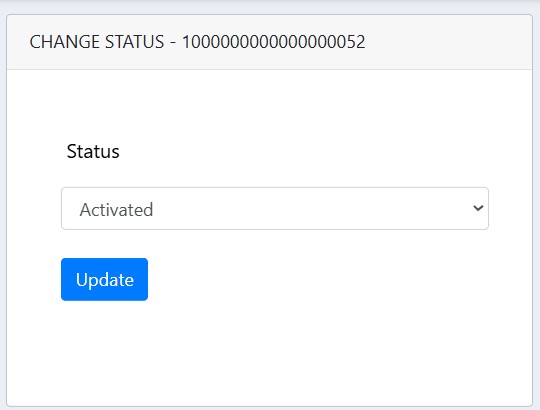
Change Status
This allows user to change the status of the connection from "Activated" to "Deactivated" and vice-versa.
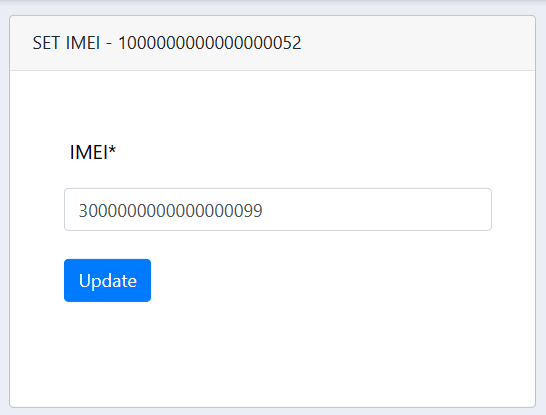
Set IMEI
This allow the user to change the IMEI of the SIM.
Legacy Portal Connection
This redirect the user to the devicewise (IOTP) page, where user can see that particular connection details.
Advanced Features
This page redirect the user to the devicewise Developer page.
eUICCs (available only for orgs where eUICC is enabled)
This page shows a card listing all of the eUICCs.
-
For every record will be presented EID, Active ICCID, Fallback ICCID, SGP Type
-
User can see the detail of a eUICC by clicking on "Detail" button.
-
User can filter the list by EID, Active or Fallback ICCID
-
User can also "Export" the records.
eUICCs
This page shows the details of a eUICC:
-
Data, SMS and Voice usage for current month
-
The list of profiles associated to this eUICC
-
User can navigate to 'History' of selected eUICC
-
User can 'Add profile' to the eUICC
-
User can 'Set active profile' to the eUICC
-
User can initiate 'Refresh eUICC'