Clone Failed SWM Campaigns
You will be able to clone a failed Campaigns from the Campaigns screen. To clone a failed campaign, do the following:
- On the SWM app, Click CAMPAIGNS
- Select the campaign with at least one Failure
- Click CLONE
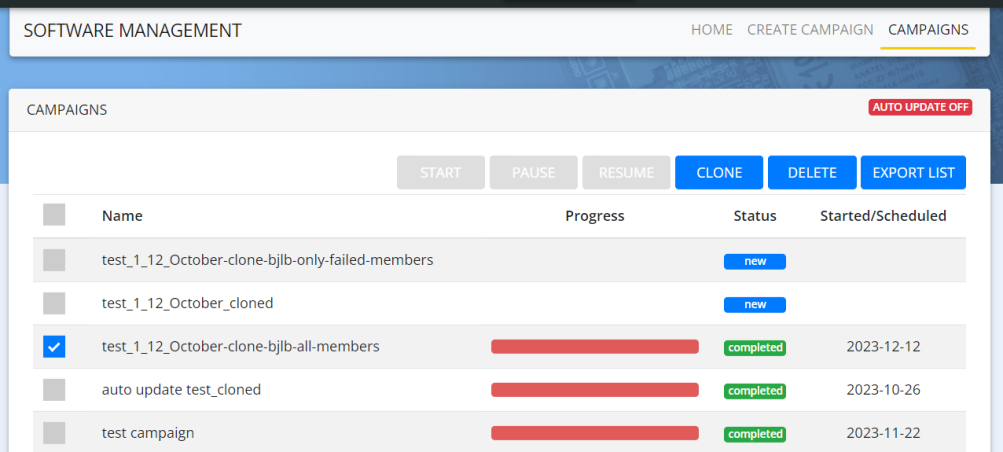
Cloning campaign screen appears. - Enter the Name of the new Campaign.
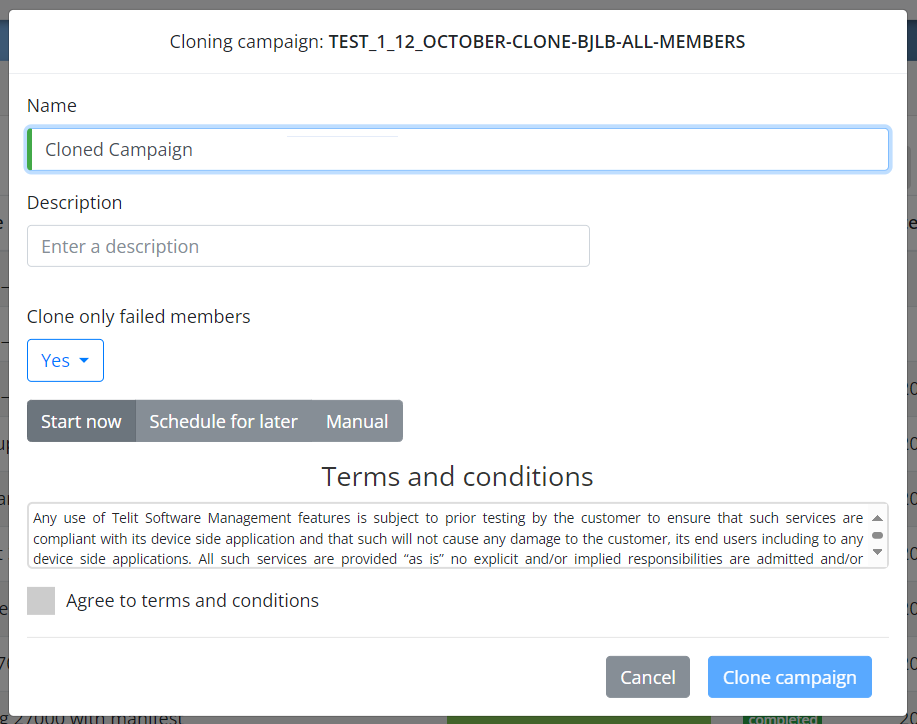
By default the "Name" box is filled automatically with the same name of the original campaign, if the user does not change it, the "Clone campaign" button remains disabled
- Enter a description of the campaign (optional).
- In the Clone only failed members drop-down, select one of the following:
- Yes: If you want the new campaign to run only on the failed items.
- No, clone all members: If you want to rerun the campaign on all the members, irrespective if it is failed or passed.
- To start the campaign immediately after you finish creating the campaign, Click Start now.
- To schedule the campaign, click Schedule for later
- Click on the date selector to select a date
- Click on the time selector to select a time
- The Manual option allows you to complete creating the campaign without scheduling/starting the campaign. If selected, then the campaign will be created but not started or scheduled, being needed to start it manually.
- Click the check box to Agree to terms and conditions.
- Click Clone campaign.