Defining a SubTrigger event type trigger is similar to defining other trigger event types. Subtriggers have Input Variables and Output Variables that can be used to pass parameters to and from the trigger that "calls" the subtrigger.
To define the example subtrigger, follow these
steps:
- From Workbench left pane, select the
Projects icon.
The Projects window appears. - Select or create the MyProject
project if needed.
The project tab appears. - Select the New button at the
bottom of the project tab.
- In the Name box, type a name for
the trigger. We will use the name
subtrigger.
- From the Event tab, select the
Trigger Event Type down-arrow, and
then select SubTrigger.
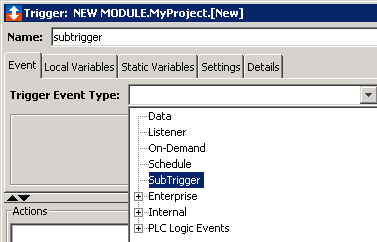
- Next, we want to specify the Input
Variables and Output
Variables of the subtrigger.
Select the Input Variables button to display the Variables window.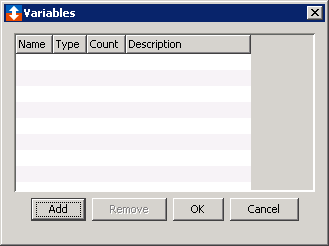
- Select the Add button and add a
subtrigger_in_name variable with
Type of STRING and
Length of 16.
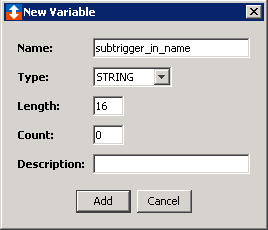
- Select the Add button to close the
New Variable window, then the
OK button to close the
Variables window.
- Select the Output Variables button
to display the Variables window
similar to above.
- Select the Add button and add a
subtrigger_out_status variable with
Type of STRING and
Length of 16.
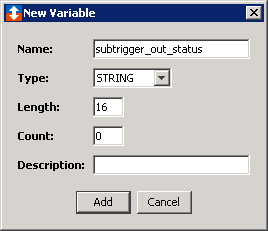
- Select the Add button to close the
New Variable window, then the
OK button to close the
Variables window.
- We will now add two simple actions.
The first action will log a message to the Exceptions Log.
The second action will set Success! as an Output Variable. - From the Actions section, select
Add.
The New Action window appears.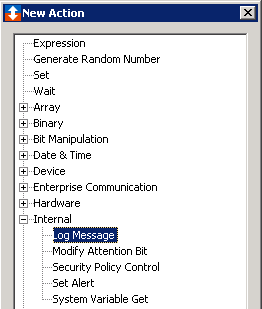
- Select Log Message and select
Add to add the first action.
Use default values except for the Message field. Enter Hello $(Name) in the Message field.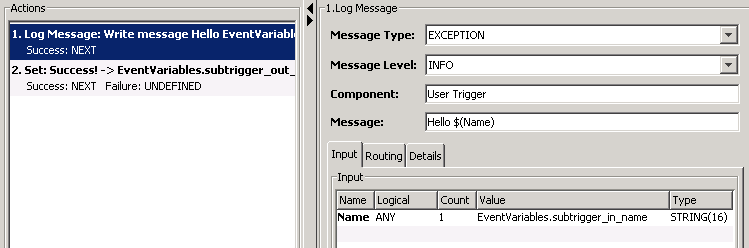
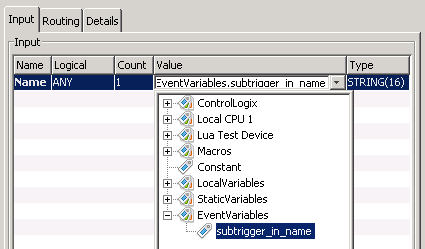
- Map
EventVariables.subtrigger_in_name as
the input Name value.
- From the Actions section, select
Add to add the second action.
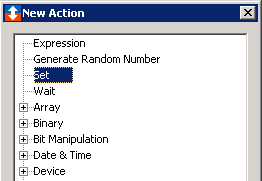
- Select Set and click
Add.
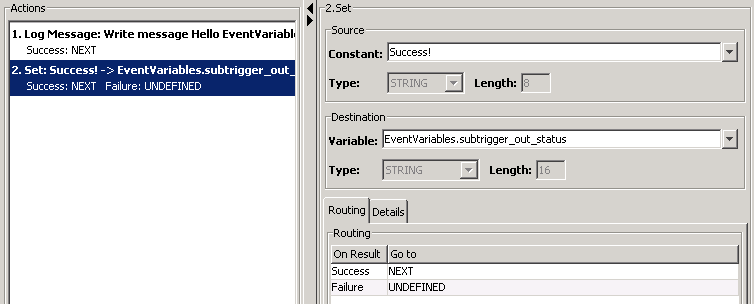
- Enter Success! in the
Constant field and select
EventVariables.subtrigger_out_status
for the Variable field.
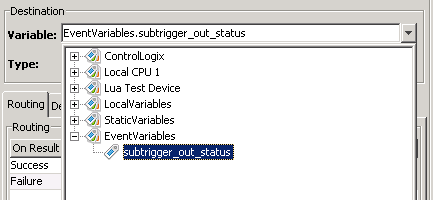
- Select Validate to validate the
trigger and action parameters. If there are no error
reported, select Save.
If there are errors reported, correct the errors, then select Validate again and then select Save.