This page describes how to download and install the deviceWISE Asset Gateway for USRobotics product on an USRobotics gateway.
The USRobotics model supported is:
- USRobotics Courier M2M Cellular Gateway 3510
Prerequisites
The following is assumed:
- You have the USRobotics gateway
- You have an Ethernet cable
- You have a computer, such as a laptop, that can have its IP address changed to allow a direct Ethernet cable connection to the USRobotics gateway at its factory default IP address
- You have a Management Portal user ID and password
and know how to log on. You need this to download the
Asset Gateway installation files from the Management
Portal.
If you need a Management Portal account, see Creating the deviceWISE Cloud account.
If you received the installation files from your Telit representative or if you use the USRobotics provisioning server, you can skip the Obtaining the Asset Gateway for USRobotics gateway product steps.
Review the information regarding the USRobotics firmware level and then proceed with the configuration and provisioning steps.
USRobotics gateway firmware level
The USRobotics gateway will be running a 1.x.x version of the USRobotics firmware. The level of the USRobotics firmware is displayed on the home screen of the USRobotics gateway web interface.
- The deviceWISE Asset Gateway for USRobotics gateway product is developed with a software development kit (SDK) from USRobotics gateway.
- The deviceWISE Asset Gateway for USRobotics gateway
product is developed with and only supports the 1.x.x
of the USRobotics firmware.
Option Cloudgate firmware level
It is very important that the version of the deviceWISE Asset Gateway for USRobotics product installed onto the gateway corresponds to the USRobotics firmware that is installed on the gateway.
Otherwise, the product will not initialize and function correctly.
Obtaining the Asset Gateway for USRobotics gateway installation file
Follow these steps to download the Asset Gateway installation file for the USRobotics gateway:
- Log on to the Management Portal, and then select
Developer.
The Developer menu appears. - From the Developer menu, select
Resources.
- From under Index of files, select
the appropriate build (if you are not sure, pick the
latest available build).
- Select USRobotics.
- Select USR3510.
- Select Asset_Gateway.
- Select
DWGateway_Install.Linux-ARM-USRobotics.XXX.zip
(where XXX is the version of the Asset Gateway software
you want to download)
and download the file to a temporary location on your computer.
Inserting a cellular SIM card
If the USRobotics gateway will be configured for
cellular connection, follow the instructions provided with
the hardware to install your SIM card.
The SIM card gets installed behind the panel that has the
power connector and the Reset button. The
SIM card metal connectors are positioned down, with the
notch to the upper left as it is inserted into the
USRobotics gateway.
Configuring the USRobotics gateway using the USRobotics web interface
- After the file has been downloaded to your
computer, you must reconfigure your computer's Ethernet
interface to allow connectivity to the USRobotics
gateway. Use the following settings for you computer's
Ethernet interface:
- IP address: 192.168.1.2
- Network Mask: 255.255.255.0
- Connect your computer's Ethernet interface to the
USRobotics gateway using an Ethernet cable.
- From your computer, you should be able to ping the
USRobotics gateway at IP address: 192.168.1.1
- Using a web browser, access the USRobotics gateway
at its default IP address by entering
http://192.168.1.1 into the address field of your web
browser.
- At the login page, log in using the default
Username 'admin' and the default
Password 'admin'. The USRobotics web
interface Home screen appears, allowing you to perform
several configuration tasks:
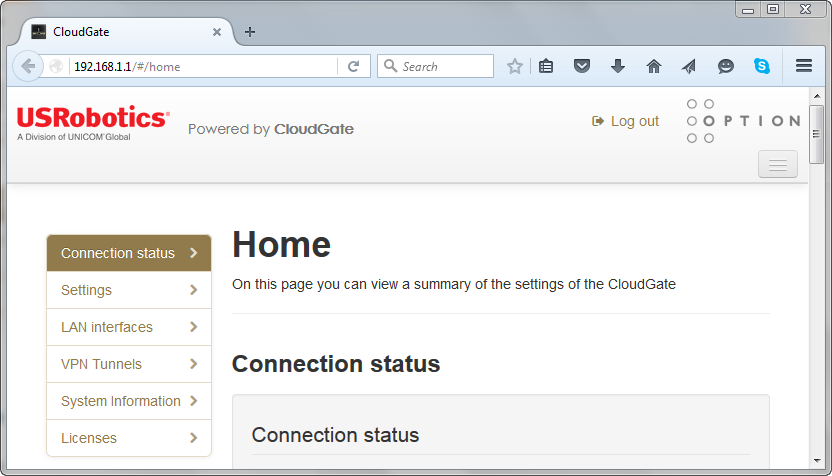
The configuration tasks include:- Ethernet configuration
- Cellular configuration (3G Connection)
- System to set the time zone
- Provisioning to load the deviceWISE Asset
Gateway software. Alternatively, your
organization may direct you to use the
USRobotics provisioning server to load the
deviceWISE Asset Gateway software.
Each one of these tasks are described in the following steps. Other configuration tasks may apply to your specific environment and configuration.
- Select Ethernet.
The Ethernet configuration screen appears:- Select the General
settings options as follows:
Enabled = Yes, Mode = LAN, WAN/LAN Switchover = Yes - Enter the IP Config
settings:
IP address = the IP address assigned for the USRobotics gateway on the LAN
Netmask = The network mask to use in combination with the IP address
Enable DHCP server = No. This setting is dependent on your environment and whether the USRobotics gateway will be functioning as a DHCP Server. - Select Save changes to
have the settings applied.
- Select the General
settings options as follows:
- Because you changed the IP address from the default
of 192.168.1.1 to another value, your web browser
screen will not complete its refresh of the
changes.
Close that web browser window, open a new web browser window and enter the IP address that you configured for the USRobotics gateway.
Login using the default Username 'admin' and the default Password 'admin'. - Select 3G Connection.
The 3C Connection (cellular) configuration screen appears:- Select the General settings option Enabled = Yes
- Select the Image configuration option that matches your cellular operator
- Select Save changes to have the settings applied
- After the changes are applied, in the Network settings options, enter or select the appropriate options, such as APN
- Select Save changes to have the settings applied
- After the changes are applied, the
USRobotics gateway should be connected to your
cellular operator.
- Select System.
The System configuration screen appears:- Select the Timezone for the USRobotics gateway
- Review the other settings options that may apply for your environment
- Select Save changes to
have the settings applied.
- If your organization has decided to use the
USRobotics web interface to load the deviceWISE Asset
Gateway software, proceed with this step.
Alternatively, your organization may direct you to use the USRobotics provisioning server to load the deviceWISE Asset Gateway software.
Select Provisioning
The Provisioning configuration screen appears:- In the Upload device provisioning file section, select the Browse... button to open a File Upload window and navigate to the location of the deviceWISE Asset Gateway installation file on your computer. Select the installation file, then select Open.
- Select Upload to install the installation file onto the USRobotics gateway.
- A Restart Device option
will be displayed. Select
Restart to have the gateway
restart. The deviceWISE Asset Gateway software
will be started after the gateway has
restarted.
- If your organization has decided to use the
USRobotics provisioning server, http://usrobotics.cloudgate.option.com/,
to load the deviceWISE Asset Gateway software and
perform other gateway configuration tasks, the details
of these tasks will come from your organization and
depends on how they have decided to administer and
support your gateways.
The USRobotics provisioning server administration and configuration tasks may include:- Uploading the deviceWISE Asset Gateway software to the provisioning server
- Defining the USRobotics gateway devices
- Defining the USRobotics firmware, deviceWISE Asset Gateway software and other configuration information that should be provisioned to the USRobotics gateway devices.
Next steps
If you are following the steps in the Getting Started with Gateways guide, you can continue with the tasks described in Installing the Workbench to connect the Asset Gateway to the deviceWISE Cloud.
If you are not following the steps in the Getting Started with Gateways guide and need to install the Workbench, you can continue with the tasks described in Installing the Workbench software.
If the Workbench is already installed, see The Workbench in the Gateway Developer's Guide and Reference for information on using the Workbench and the deviceWISE features that it can access.
Install any device driver or extension files that need to be applied to a node using the Packages tab. It is important to have the supported level of the device driver or extension files that match the base run time release level. If there are any questions or concerns, contact your support representative. See Packages for more information on adding device driver and extension files.