Importing/Exporting Displays
You will be able to Import/Export multiple displays using the Workbench. Additionally, you will be able to Import/Export a display by Importing/Exporting the JSON in the deviceWISE View.
 Using deviceWISE View
The following section describes Importing and Exporting a display in deviceWISE View as JSON:
- Within a Display, click
 (Settings).
Edit Display screen appears. - Do one of the following:
- To Import a JSON, click Import and select a JSON. The imported display will replace the existing display.
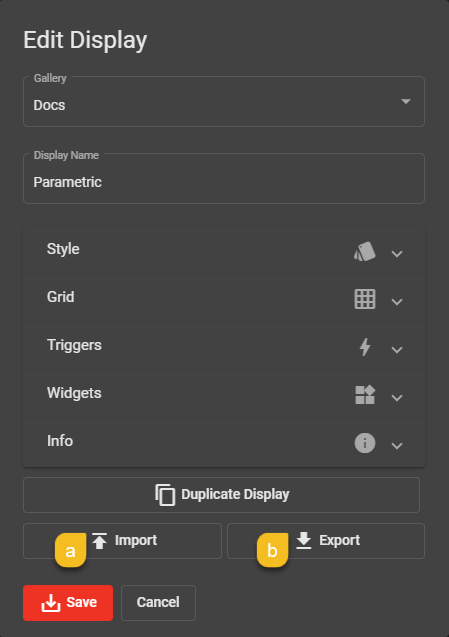
- To export the JSON, click Export and save it to a location.
- To Import a JSON, click Import and select a JSON. The imported display will replace the existing display.
Using Workbench
The following section describes Importing and Exporting displays in deviceWISE View using Workbench:
- Backup the entire node in the Workbench. For more information on Backing up the node, see Backing up and Restoring a node's configuration.
- Restore the node by selecting only the Galleries and Displays you want to export.
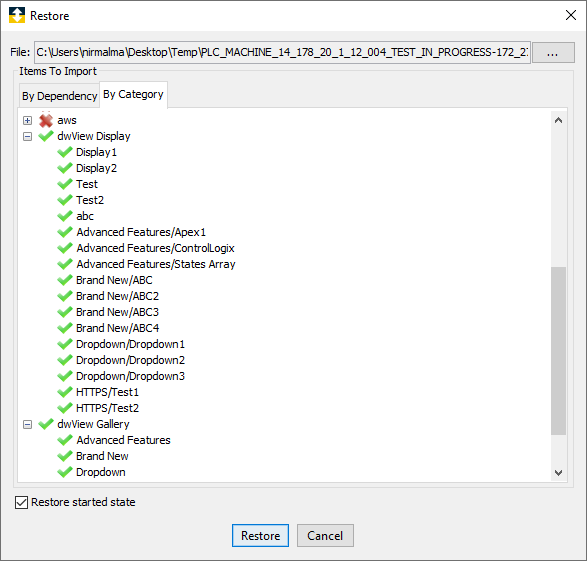
- Open the node in the deviceWISE View. For more information on accessing the nodes, see Accessing deviceWISE View .
All the Galleries with the respective Displays should appear.